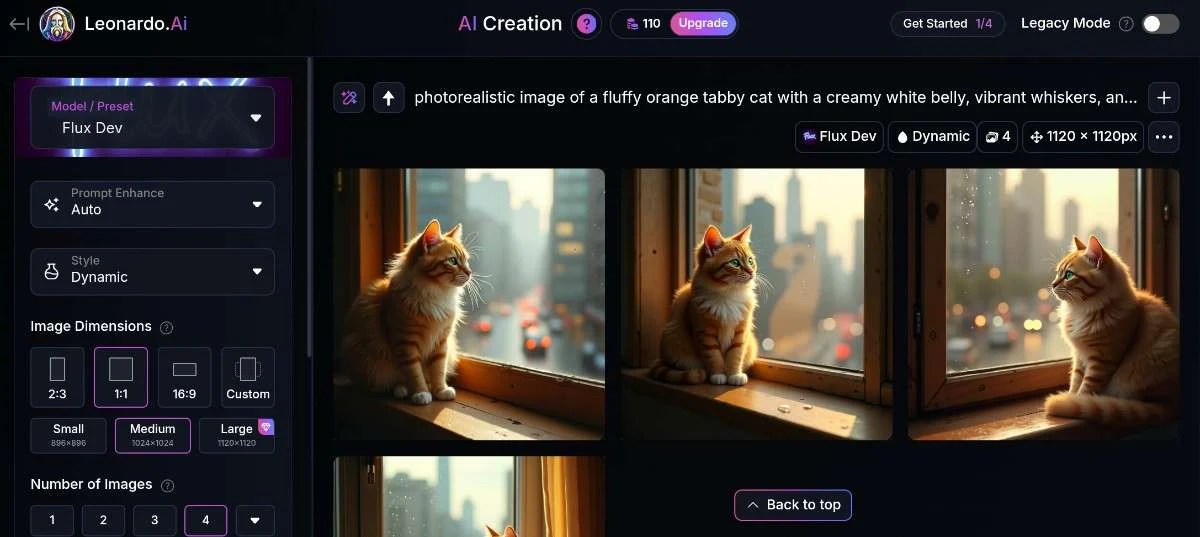
Need to create an image from a prompt, improve a portrait, remove a background, fix a noisy photo, or edit hundreds of pictures? You do not need the same AI tool for all five jobs.
Photoshop is built around control and advanced editing. Lightroom makes more sense for photographers managing RAW files and large collections. Luminar Neo focuses on fast AI-assisted editing. Topaz Photo is aimed at image enhancement. Photoroom is built around background removal and product images.
Then there are browser and mobile tools such as Canva, Picsart, Fotor and Pixlr, which make more sense for quick edits and social content.
I tested these tools against the same types of editing tasks, including portrait enhancement, background removal, noise reduction and image expansion. The results were not identical, and the best choice depends heavily on the type of image you edit.
So instead of asking which AI image tool has the longest feature list, this guide answers a more useful question:
Which AI image generator or photo editor fits the job you need to do?
Best for advanced AI editing: Adobe Photoshop
Best for photographers and RAW workflows: Adobe Lightroom
Best for easy AI enhancement: Luminar Neo
Best for noise reduction and image recovery: Topaz Photo
Best for RAW processing: DxO PhotoLab
Best for product background removal: Photoroom
Best for social media graphics: Canva
Best for Mac-focused editing: Photomator
Best for prompt-based image generation: Adobe Firefly
The 13 tools below are grouped by their strengths rather than treated as interchangeable products.

13 AI Image Generators and Photo Editors Compared
| Tool | Best for | Editing | RAW workflow | Batch editing | Platform |
|---|---|---|---|---|---|
| Adobe Photoshop | Advanced AI editing | Excellent | Yes | Good | Desktop, web, mobile |
| Adobe Lightroom | Photography and RAW files | Excellent | Yes | Excellent | Desktop, web, mobile |
| Luminar Neo | Easy AI photo enhancement | Excellent | Yes | Good | Mac, Windows |
| Topaz Photo | Noise reduction and enhancement | Excellent | Yes | Good | Mac, Windows |
| DxO PhotoLab | RAW processing | Excellent | Yes | Good | Mac, Windows |
| Photomator | Apple users | Very good | Yes | Good | Mac, iPhone, iPad |
| Pixelmator Pro | Mac creative editing | Very good | Yes | Good | Mac |
| Canva | Social content | Good | Limited | Good | Web, mobile, desktop |
| Picsart | Mobile creative editing | Good | Limited | Good | Web, mobile |
| Photoroom | Product photos | Excellent | Limited | Excellent | Web, mobile |
| Fotor | Quick online editing | Good | Limited | Good | Web, mobile |
| Pixlr | Browser editing | Good | Limited | Good | Web, mobile |
| Adobe Firefly | Prompt-based generation | Excellent | No | Limited | Web |
Before you subscribe: Free plans, trial periods, AI credits, supported formats and export limits change frequently. Check the current plan on the provider's website before paying.
How We Tested the AI Photo Editors
We did not compare these editors from feature lists alone. We looked at how each tool handled common editing jobs a photographer, content creator or casual user might face..
For consistency, we tested the tools against similar editing tasks and inspected the results for image quality, ease of use, processing speed and the amount of manual correction needed..
Our Testing Criteria
| Test | What We Looked For | Why It Matters |
|---|---|---|
| Portrait enhancement | Skin texture, eyes, hair and facial detail | Good AI retouching should improve a portrait without making the person look artificial. |
| Background removal | Hair, clothing edges and fine details | Clean edges matter when creating product images or social media graphics. |
| Object removal | Texture reconstruction and visible artifacts | A removed object should not leave obvious patches or repeated patterns. |
| Noise reduction | Noise removal and preservation of fine detail | Strong noise reduction should not turn textures into plastic-looking surfaces. |
| Image enhancement | Sharpness, detail and overall image quality | Useful for improving older, compressed or low-quality photographs. |
| Generative editing | Prompt accuracy, blending and unwanted artifacts | AI-generated changes should fit the original photograph naturally. |
| Ease of use | Interface, workflow and learning curve | A feature matters less if finding or using it is unnecessarily difficult. |
| Batch processing | Multiple-image workflow and consistency | Batch tools save time when working with large photo collections. |
What to Check Before Paying
Features alone should not decide which editor you buy. Before paying, check these points against the type of work you actually do:
- AI credits: Check how many AI edits your plan includes.
- Export limits: Check resolution, file formats and watermark restrictions.
- RAW support: Important for photographers working with camera files.
- Batch editing: Useful when processing many images at once.
- Generative tools: Check whether generative features require separate credits.
- Desktop or mobile access: Pick a tool that fits your normal workflow.
- Cloud storage: Check storage limits if you want your photo library available across devices.
- Free trial: Test your own photographs before committing to a subscription.
Tip: Test the same three to five photographs in every editor you're considering. Use a portrait, a low-light image, a landscape and an image with a distracting background. You'll get a more useful comparison than testing each app with a different photograph.
Our Testing Benchmark
We used the same types of editing tasks across the tools where the feature was available. We then inspected the output at full resolution and recorded the strengths, weaknesses and amount of manual cleanup required.

For example:
Portrait test prompt: Improve the portrait while keeping the person's facial identity, natural skin texture, hair detail and original lighting. Do not change the person's age, face shape or clothing.
Then compare the outputs at 100% zoom.
Do not judge only the thumbnail.
AI edits often look impressive at a small size while revealing strange skin texture, duplicated objects, warped fingers or artificial hair when viewed closely.
| Test | Photoshop | Lightroom | Luminar Neo |
|---|---|---|---|
| Portrait detail | Excellent | Good | Excellent |
| Background removal | Excellent | Good | Good |
| Object removal | Excellent | Good | Fair |
| Noise reduction | Good | Excellent | Good |
| Upscaling | Excellent | Good | Good |
13 Outstanding AI Image Editors and AI Image Generators
Looking for the best AI image generator or AI photo editor? Start with the job you need to solve. The tools below cover prompt based image creation, AI photo editing, portrait retouching, background removal, image enhancement, RAW workflows, batch processing, and professional editing. Our hands on results show where each tool performs best, where its limits appear, and which AI editor fits your needs.
1. Adobe Photoshop
Best for: Advanced AI image editing, compositing and precise creative control.
Photoshop is the strongest choice when an AI edit needs to fit inside a larger professional editing workflow.
You can select part of an image, generate new content, remove an object, expand the canvas or combine generated elements with traditional layers and masks.
Adobe's current Photoshop AI tools include Generative Fill, Generative Expand and Remove. Adobe also supports reference images and partner AI models inside some generative workflows.
Why choose Photoshop?
- Precise selections and masks
- Generative Fill
- Generative Expand
- AI object removal
- Layer-based editing
- Advanced retouching
- Compositing
- Professional colour and adjustment controls
Best use cases
Use Photoshop for commercial photography, advertising, detailed retouching, composite images, product work and edits where you need control over individual elements.
Who should skip Photoshop?
If you only want to brighten family photographs, crop images and remove a few unwanted objects, Photoshop might give you more control than you need.
2. Adobe Lightroom
Best for: Photographers working with RAW files, large photo libraries and repeated edits.
Lightroom is easier to recommend for photography because editing is only part of the workflow. You also need to organise photographs, process RAW files and apply consistent changes across a shoot.
Adobe's current Lightroom features include AI-assisted masking, Generative Remove, Denoise, Super Resolution, Lens Blur, portrait Quick Actions and batch editing.
Why photographers choose Lightroom
- RAW editing
- AI masking
- Generative Remove
- AI Denoise
- Super Resolution
- Lens Blur
- Colour grading
- Batch editing
- Desktop, web and mobile workflows
Batch editing is one of the biggest reasons to choose Lightroom over a simpler AI editor. You can copy adjustments across multiple photographs rather than rebuilding the same correction repeatedly.
Best for portraits
Lightroom works well when you need consistent exposure, colour, masking and retouching across a portrait session.
Best for landscapes
AI masking, Denoise, Super Resolution, colour controls and local adjustments make Lightroom a strong fit for landscape photographers.
Who should skip Lightroom?
If you rarely edit photographs and only need quick online changes, a simpler tool might be faster.
3. Luminar Neo
Best for: Fast AI-assisted photography without a steep professional editing workflow.
Luminar Neo takes an AI-first approach to common photographic problems.
Its current tools include AI-assisted portrait work, sky replacement, relighting, atmospheric effects and other automated adjustments. Luminar Neo also added an AI Assistant workflow for editing suggestions and instructions.
This makes Neo attractive to photographers who want strong results without building every edit manually.
Best uses
- Portrait enhancement
- Landscape editing
- Sky replacement
- Relighting
- Background improvements
- Creative effects
- Quick AI adjustments
Who should skip Luminar Neo?
Photographers who need the deepest possible control over every stage of a complex professional workflow might prefer Photoshop or Lightroom.
4. Topaz Photo
Best for: Noise reduction, sharpening, upscaling and image enhancement.
Topaz Photo makes sense when your problem is image quality rather than graphic design.
Think about a noisy night photograph, an old family image, a soft photograph or a small image you need to enlarge.
Instead of buying a full creative suite for one task, a specialist enhancement application might fit the job better.
Best uses
- High-ISO noise reduction
- Sharpening
- Image enlargement
- Detail recovery
- Old photo enhancement
- Print preparation

5. DxO PhotoLab
Best for: RAW processing, photographic corrections and demanding image-quality workflows.
DxO PhotoLab belongs on the shortlist for photographers who care more about the technical quality of a RAW file than flashy AI effects.
Use it when lens corrections, noise reduction, RAW processing and detailed image adjustments matter more than social media templates or prompt-based generation.
Best for
- RAW photography
- Low-light images
- Landscape photography
- Wildlife photography
- Lens corrections
- Noise reduction
6. Photomator
Best for: Mac, iPhone and iPad users who want a simpler photo-editing workflow.
Photomator is a good fit for Apple users who want more control than a basic photo app provides without adopting a larger professional suite.
Its Apple-focused workflow makes the application especially interesting for people who move photographs between Mac and mobile devices.
Best for
- Apple users
- RAW editing
- Quick photo enhancement
- Mobile and desktop editing
- Occasional photography

7. Pixelmator Pro
Best for: Mac users who want photo editing combined with creative design tools.
Pixelmator Pro sits closer to a creative editing application than a traditional photography catalogue manager.
It suits Mac users who want to combine photographs with graphic elements while retaining access to AI-assisted editing tools.
Its biggest limitation is platform availability. Windows users need another option.
8. Canva
Best for: Social media content, marketing graphics and quick visual projects.
Canva is not a replacement for Photoshop or Lightroom when RAW processing and detailed photographic control matter.
For social content, the priorities change.
You need image editing, templates, text, resizing and design tools in one place.
That's where Canva makes sense.
Choose Canva for
- Instagram graphics
- YouTube thumbnails
- Marketing images
- Social media campaigns
- Simple AI image creation
- Template-based designs
9. Picsart
Best for: Mobile-first creative editing and social content.
Picsart focuses on quick creative changes rather than the traditional photographer's desktop workflow.
It is useful for people who edit selfies, social photographs, promotional images and other content directly from a phone.
If you need detailed RAW processing, choose a dedicated photography application instead.
10. Photoroom
Best for: Product photography and automatic background removal.
Background removal sounds simple until you deal with hair, transparent objects, thin edges and complicated product shapes.
AI reduces much of the manual selection work.
For online sellers, this is more than a convenience. Repeating the same background cleanup across hundreds of product photographs becomes a time problem.
Best uses
- E-commerce product photos
- Marketplace listings
- Online stores
- Product catalogues
- Social commerce
- Quick background replacement

11. Fotor
Best for: Beginners who want quick online AI photo editing.
Fotor fits occasional users who don't need a large desktop application.
Use an online editor like this for straightforward enhancement, creative effects and social content.
The main advantage is convenience. Open the editor, upload the image and start working.
12. Pixlr
Best for: Browser-based photo editing.
Pixlr is useful when you want an editor available through a browser rather than a full desktop installation.
It sits between basic photo tools and heavier professional software.
For occasional edits, social content and quick image adjustments, this approach makes sense.
13. Adobe Firefly
Best for: Prompt-based image generation and generative image editing.
Firefly makes more sense when your starting point is an idea rather than an existing photograph.
For example:
Create a realistic editorial photograph of a modern Lagos apartment at golden hour, photographed with natural window light.
You can then move from generation into editing workflows where supported.
Adobe has also expanded Firefly's image editing capabilities with tools for generative fill, remove, expand, upscale and background removal.

AI Image Generator vs AI Photo Editor
The terms are often mixed together, but the workflows are different.
| Tool type | Starting point | Main purpose |
|---|---|---|
| AI image generator | Text prompt or reference | Create a new image |
| AI photo editor | Existing photograph | Improve or change the image |
| Generative editor | Existing photograph | Add, remove or replace content |
| AI enhancer | Existing photograph | Improve detail, noise or resolution |
| Design platform | Image, template or prompt | Create finished visual content |
Photoshop is strongest when you need to edit an existing photograph and control the result. Firefly is more generation-focused. Lightroom is built around photography. Topaz Photo focuses on enhancement.
Best AI Photo Editors for Portraits
Portrait editing needs restraint.
A tool that changes too much might produce a technically polished photograph while making the person look like somebody else.
For professional control, start with Photoshop or Lightroom.
For faster AI enhancement, consider Luminar Neo.
For mobile creative portrait edits, Picsart is worth considering.
What to test
- Skin texture
- Eye detail
- Hair
- Facial identity
- Teeth
- Skin colour
- Background blur

Best AI Photo Editors for Landscape Photography
Landscape editing needs control over large areas of an image without destroying natural detail.
Lightroom is a strong general choice for RAW workflows, masking and colour adjustments.
DxO PhotoLab is worth considering when RAW processing and image quality come first.
Luminar Neo is attractive for photographers who want fast sky, lighting and atmosphere adjustments.
Photoshop becomes more useful when the image needs substantial compositing or generative expansion.
Best AI Photo Editors for Noise Reduction
Noise reduction is a useful example of why AI image editing needs proper testing.
The goal isn't simply to remove noise.
The goal is to remove unwanted noise while preserving meaningful detail.
Compare hair, foliage, fabric, skin texture and small objects at 100% zoom.
Topaz Photo, Lightroom and DxO PhotoLab deserve attention for this type of work.
Testing tip: Use a high-ISO image from your own camera. A generic sample photograph won't tell you how the software handles your camera, lens and shooting conditions.
Best AI Photo Editors for Background Removal
For product photographs, background removal is often one of the most useful AI features.
It eliminates much of the manual selection work and makes it easier to create consistent product images.
Photoroom is a strong choice for product-focused workflows.
Photoshop is better when the cutout is only one part of a larger composition.
When comparing tools, test difficult edges rather than a simple object against a plain background.
Use hair, glass, jewellery, plants or a product with thin edges.
Best AI Photo Editors for Batch Processing
Batch editing matters when you have dozens or hundreds of photographs.
Lightroom is one of the strongest choices because photographers can copy adjustments across multiple images. Adobe specifically supports batch editing across desktop and mobile workflows. 7
Before choosing a different application, check whether its batch function applies only basic adjustments or handles more advanced AI operations.
Best AI Photo Editors for RAW Files
If you shoot RAW, don't choose an editor based on its AI features alone.
Check:
- Your camera model
- Your RAW format
- Lens support
- Colour handling
- Export options
- Noise reduction
- Batch processing
- Cloud workflow
Lightroom and DxO PhotoLab are strong starting points for photographers with serious RAW workflows. Photoshop also fits professional editing when detailed compositing is part of the job.
Important: RAW support is not universal across every feature. Test a file from your own camera before paying for an application.
Best AI Photo Editors for Mac
| Tool | Why Mac users should consider it |
|---|---|
| Photoshop | Advanced AI editing and compositing |
| Lightroom | Photography and RAW workflow |
| Luminar Neo | AI-first editing |
| Photomator | Apple-focused workflow |
| Pixelmator Pro | Mac-native creative editing |
| DxO PhotoLab | RAW processing |
| Topaz Photo | Image enhancement |
Best AI Photo Editors for Mobile
Mobile users usually prioritise speed and convenience.
Lightroom is a strong choice for photographers who want a serious editing workflow away from the desktop.
Picsart is better suited to creative mobile edits and social content.
Canva works well when the final result needs text, templates and a social media layout.
Best AI Photo Editors for Social Media
If your final output is an Instagram post, TikTok graphic, YouTube thumbnail or marketing image, a traditional photography application might not be the best choice.
Canva is a strong general option because editing, templates, text and layout tools sit together.
Picsart works well for mobile-first creative edits.
Photoroom is useful when your social content features products.
How AI Generative Fill Works
Generative Fill lets you select an area of an image and ask an AI model to add, replace or remove content.
For example, you might select an unwanted object and ask the software to remove it.
You might also select an empty part of the canvas and ask the model to extend the scene.
Adobe's current Photoshop workflow lets users select an area, enter a prompt and generate new content. Adobe also recommends shaping the selection around the intended object because a more accurate selection gives the model better context.

How AI Improves Portrait Retouching
AI portrait tools identify areas such as skin, eyes, teeth, hair and the background, then apply targeted adjustments.
The advantage is speed.
The danger is over-processing.
Reduce the strength of an effect when the result starts looking artificial.
Natural skin should still have texture. Eyes should still look like eyes rather than bright digital circles.
How to Restore Old Photos With AI
AI restoration works best when the original image has enough information for the software to interpret.
For damaged photographs, try this workflow:
- Scan the original at the highest practical resolution.
- Keep an untouched copy.
- Remove dust and scratches.
- Reduce noise carefully.
- Improve sharpness.
- Upscale only when needed.
- Inspect faces and fine details.
- Save the restored version separately.
AI restoration is an interpretation of missing information. Don't treat generated detail as proof of what the original photograph contained.

How to Use AI for Colour Grading
AI colour tools work best as a starting point.
Use this order:
- Correct exposure.
- Fix white balance.
- Reduce noise when needed.
- Apply local masks.
- Adjust colour.
- Compare the result with the original.
- Reduce the effect if skin tones or natural colours look wrong.
AI should speed up colour work, not remove your judgement from the process.
AI Photo Editors With Cloud Storage
Cloud storage matters when you work across multiple devices.
Before choosing a cloud-based workflow, check:
- Storage included
- RAW support
- Maximum file size
- Sync speed
- Offline access
- Export quality
- What happens to stored files after cancellation
A cloud workflow is useful, but don't subscribe solely for storage if the editor itself doesn't fit your needs.
Best Free AI Photo Editors for Occasional Use
If you edit only a few photographs each month, start with a free plan or trial.
Browser tools such as Fotor and Pixlr are suitable for simple tasks. Canva is useful for social graphics. Mobile users have additional options through applications such as Picsart.
For serious photography, test the trial version of a professional editor using your own photographs before paying.
Don't judge a free plan by the word free: Check whether exports are watermarked, whether AI features consume credits, whether high-resolution output is restricted and whether an account is required.
Which AI Photo Editor Should You Choose?
| If you need... | Start with... | Why |
|---|---|---|
| Advanced AI editing | Photoshop | Deep editing control and generative tools |
| RAW photography | Lightroom | Photography-focused workflow |
| Fast AI enhancement | Luminar Neo | AI-first controls |
| Noise reduction | Topaz Photo or DxO PhotoLab | Image-quality focused workflows |
| Product background removal | Photoroom | Designed around product imagery |
| Social media graphics | Canva | Editing plus design tools |
| Mobile creative editing | Picsart | Mobile-first workflow |
| Mac-focused editing | Photomator | Apple ecosystem |
| Prompt-based generation | Firefly | Generative image workflow |
Choose the tool that removes the most friction from the work you actually do.

Frequently Asked Questions
What is the best AI photo editor in 2026?
Adobe Photoshop is the strongest choice for advanced AI editing and generative work. Lightroom is a better fit for photographers who prioritise RAW processing, organisation and batch editing.
What is the best free AI photo editor?
For occasional editing, browser-based tools such as Fotor and Pixlr are worth testing. Canva is useful when photo editing forms part of a social media or design workflow.
What is the best AI photo editor for portraits?
Photoshop and Lightroom offer strong control for portrait editing. Luminar Neo is a good option for faster AI-assisted portrait enhancement.
Which AI photo editor is best for landscape photography?
Lightroom, DxO PhotoLab and Luminar Neo are strong choices. Lightroom suits RAW workflows and detailed masking, while Luminar Neo focuses more on quick AI-assisted adjustments.
Which AI photo editor is best for background removal?
Photoroom is particularly useful for product photography and repeated background removal. Photoshop is better when background removal forms part of a larger composite.
Can AI photo editors handle RAW files?
Several professional editors support RAW workflows, including Lightroom, Photoshop, DxO PhotoLab and Luminar Neo. Check your camera model and RAW format before subscribing.
Which AI photo editor has the best noise reduction?
Topaz Photo, Lightroom and DxO PhotoLab are strong options. Test a high-ISO photograph from your own camera because detail preservation varies between tools.
Can AI photo editors process images in batches?
Yes. Lightroom is particularly useful for photographers who need to apply similar adjustments across many photographs. Other editors also offer batch features, but the level of automation differs.
Which AI photo editors work on Mac?
Photoshop, Lightroom, Luminar Neo, DxO PhotoLab, Topaz Photo, Photomator and Pixelmator Pro support Mac workflows. Check current system requirements before installation.
What is generative fill in AI photo editing?
Generative fill uses an AI model to create, replace or remove content inside a selected part of an image. Photoshop uses Generative Fill for tasks such as adding objects, replacing areas and removing unwanted content.
How does AI improve portrait retouching?
AI identifies areas such as skin, eyes, teeth, hair and backgrounds and applies targeted adjustments. The main benefit is speed, but excessive processing can make portraits look unnatural.
Can AI restore old photographs?
Yes. AI tools help with noise reduction, sharpening, enlargement and restoration. Keep the original scan because AI sometimes reconstructs details rather than recovering information from the original.
Which AI photo editor is easiest for beginners?
Browser-focused tools such as Fotor and Pixlr are easier starting points for simple edits. Luminar Neo is worth considering when you want more advanced AI-assisted photography without starting with Photoshop's full interface.
Are AI photo editors worth paying for?
For frequent editing, paid tools often justify their cost through faster masking, batch processing, noise reduction and automated corrections. Occasional users should start with a free plan or trial.